How to Send a Document for Signature Online (Step by Step)
The client said yes on the call. Now there’s a contract, a statement of work or a lease sitting on your desktop, and nothing starts until it’s signed. This guide shows how to send a document for signature online: what to have ready, the steps every e-signature tool follows, what your options are if you don’t want to pay for a plan, and what you should get back once everyone has signed.
What You Need Before You Send
Five minutes of preparation saves most of the back-and-forth later.
- The final version of the document, as a PDF. Every e-signature tool takes a PDF. Export it from Word or Google Docs once the wording is agreed, not before.
- Each signer’s full name and email address. The signing link goes to that email, so a typo means the link never arrives. Copy addresses from a recent email rather than typing them from memory.
- Where each person signs. Know which signature line, date and initials belong to whom, especially when there’s more than one signer.
- Whether you sign too. If the document needs your signature as well as theirs, you add yourself as a signer like anyone else.
How to Send a Document for Signature, Step by Step
The buttons differ from tool to tool, but the process is the same everywhere.
- Upload the document. Choose the PDF from your computer and give it a name you’ll recognise later, like “ACME Corp - Project proposal”.
- Add the signers. Enter each person’s name and email address.
- Place the fields. Drag a signature field onto the line where each person signs, and add a date or text field where you need one. Each field belongs to one signer, so pick the right person before you place it.
- Send it. Each signer gets an email with a link to the document.
- Follow up if someone is slow. Send a reminder rather than a new copy, so there’s only ever one version in circulation.
- Get the signed copy. When the last person signs, everyone should receive the signed PDF and a record of who signed and when.
How to Send a Document for Electronic Signature with SealItDone
Here’s the same process in SealItDone, the tool I built for people who need one document signed today and don’t send contracts every week.
- Create a free account. You need an email address and a password. There’s no subscription and no credit card to sign up.
- Upload the PDF and name it.
- Add your signers. Name and email for each one. There’s no limit on how many people can sign one document.
- Drag the fields onto the document. Signature, Text and Date, placed for each signer.
- Select “Send for signing” and pay $2.99 for that document, through Stripe. It’s one price for the document, however many people sign it.
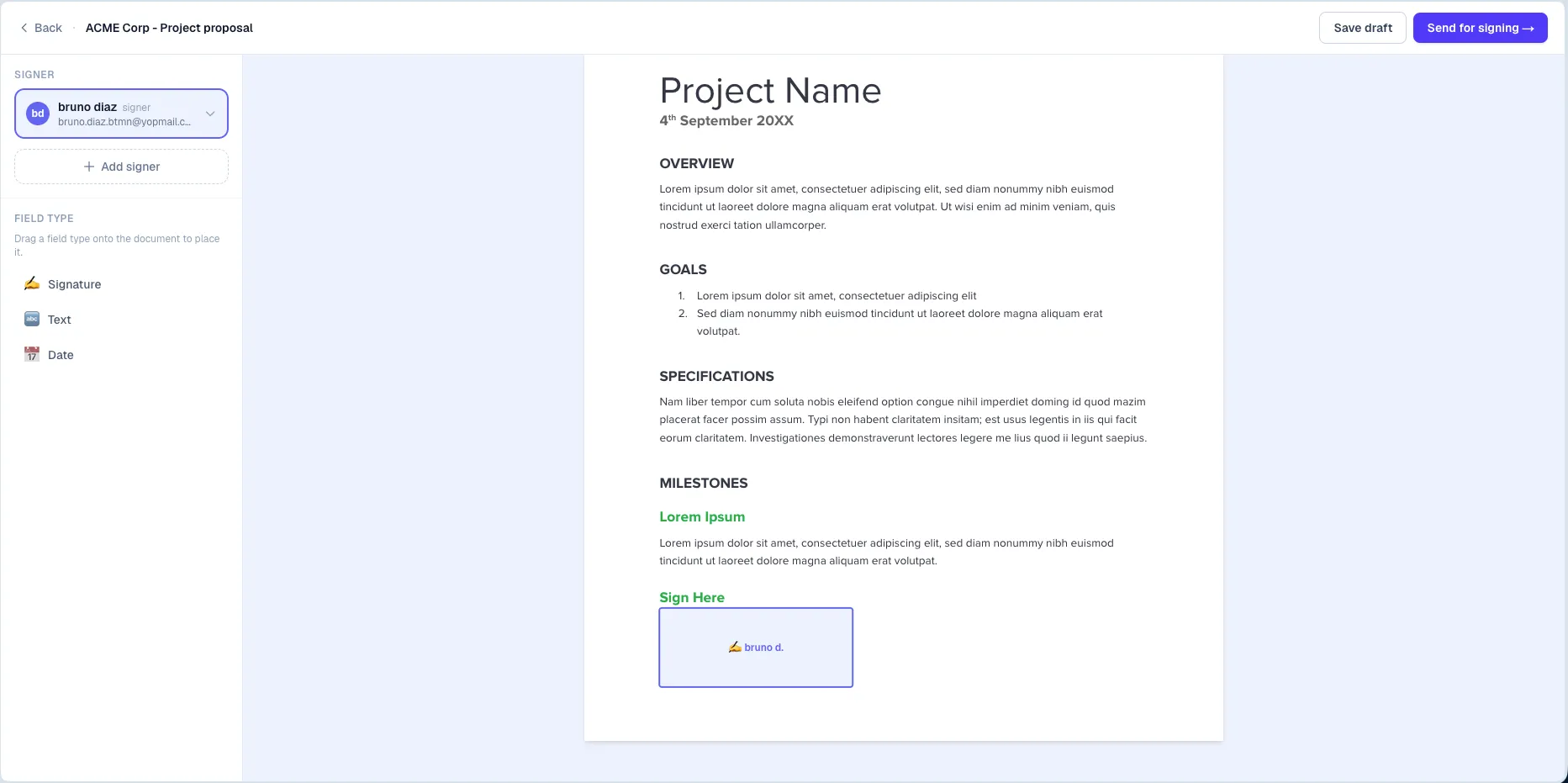
Each signer gets their own private link by email. You never see that link, and you can’t sign on anyone’s behalf. If someone is slow, you can send a reminder to one signer or to several at once. Reminders are sent when you choose, never automatically.
If you spot a mistake after sending, you don’t have to start over. While at least one signature is still pending, you can recall the document, correct it and send it again at no extra charge. Recalling clears any signatures already collected, so everyone signs the corrected version.
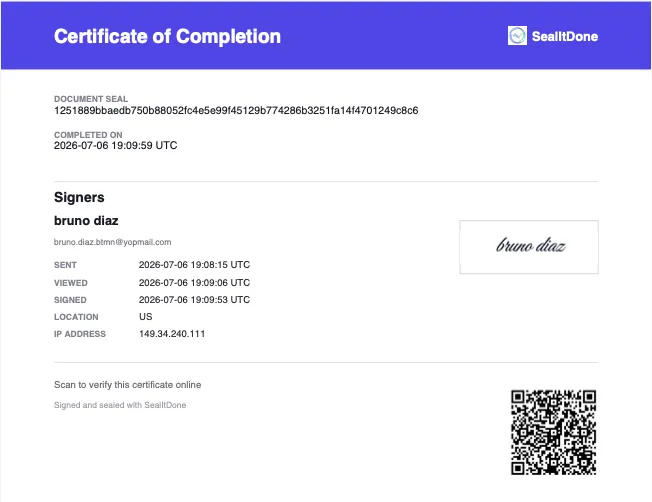
When the last person signs, the document is sealed and can’t be changed. Everyone gets the sealed PDF and a certificate of completion by email. The certificate shows when the document was sent, viewed and signed by each signer, with their IP address and location, and a QR code anyone can use to verify the seal. The file is then deleted from SealItDone’s servers (the audit trail is kept), so save your copy when it arrives. Anyone can check that copy later: see how to verify a signed document.
If you already use DocuSign and are wondering how the two compare, here’s a DocuSign alternative for one-off documents, side by side. If you’d rather stay on DocuSign, see how to send a document via DocuSign.
How to Get an Electronic Signature from Someone
From the signer’s side, it’s short. They open the email, read and accept a consent screen for doing business electronically, then sign by drawing or typing their name and submit the document. They don’t need an account or any software, and they can sign on their phone.
That consent screen isn’t a formality. Under the ESIGN Act and UETA, an electronic signature holds up when there’s intent to sign, consent to sign electronically, a signature tied to the right record, and a record that’s kept. A proper e-signature tool covers all four, and the certificate of completion is the proof. For the detail, see is Docusign legally binding?, which applies to any e-signature tool, and the ESIGN and UETA requirements.
Can You Send a Document to Be Signed Electronically for Free?
Yes, but every free route costs you something other than money.
Free plans. Most e-signature services have one, and they limit how many documents you can send and how many people can sign them. PandaDoc’s free plan, for example, allows 5 documents a month (as of November 2026). On PandaDoc you also can’t edit a document once it’s sent, so a typo means starting over and using another one of those five. That’s fine if your needs fit inside the limits. If they don’t, you find out when you’re halfway through sending a contract.
Free, open-source software. Tools like DocuSeal and OpenSign cost nothing to download, but you have to host them yourself: a server, configuration, updates and backups. That’s hours of setup before the first contract goes out. The pros and cons of self-hosted e-signature go through what’s involved.
Paying per document. No plan and no setup: you pay for the document you’re sending, and nothing in the months you don’t send anything. For what each option costs, see the cost of e-signature services compared.
Which one fits depends on how often you send. If it’s every week, a plan sized for that volume makes sense. If it’s a few times a year, a free plan’s limits or a server to maintain may be more trouble than the document is worth. For a rundown of the options, see the best way to sign documents online.
Mistakes to Avoid When You Send a Document for Signature
- Sending the draft instead of the final. Check the file name and the last page before you upload. If it does happen, recall it rather than sending a second copy.
- A wrong email address. The link goes nowhere and nobody tells you. If a signer hasn’t opened the document after a day, check the address first.
- Fields assigned to the wrong person. With two or more signers, check each field belongs to the right one before you send.
- Not saving the signed copy. Keep the sealed PDF and the certificate together with the rest of the project or client’s files. That’s your proof if the agreement is ever questioned.
The Short Version
To send a document for signature online: export the final PDF, upload it, add each signer’s name and email, place the signature fields, send, remind if someone’s slow, and keep the signed copy and its audit trail when it comes back. Whichever tool you use, those steps don’t change.